Buying Guides, Computers, Mobile
USB-C, Explained: How to Tell What Any Port or Cable Actually Does
Jun
USB-C, Explained: How to Tell What Any Port or Cable Actually Does
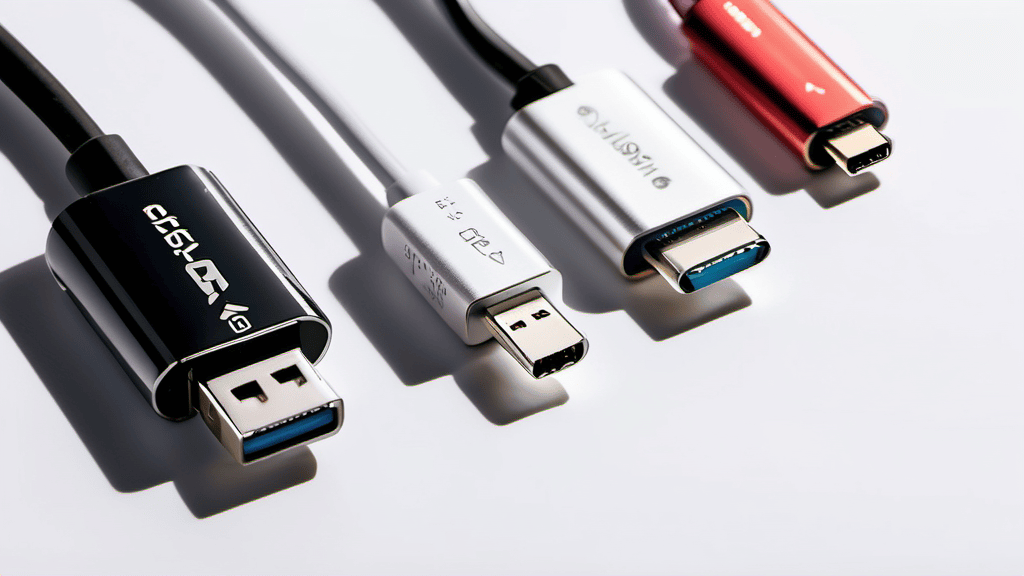
The single most useful thing to understand about USB-C is that the connector tells you almost nothing about what the port or cable can do. That oval, reversible plug is just a shape. Two cables that look identical, fit the same hole, and came in the same drawer can behave completely differently: one charges your laptop and drives a monitor, the other only trickles power into a phone. This is the source of nearly every USB-C complaint, and once you understand why, the confusion mostly goes away.
Three separate jobs hide behind one plug
A USB-C connection can do three different things, and a given port or cable might support any combination of them:
- Power — moving electricity to charge a device or run it.
- Data — transferring files between devices or to storage.
- Video — sending a display signal to a monitor, TV, or dock.
The connector supports all three in theory. Whether a specific cable or port supports them in practice depends on the wires inside and the chips on each end. A charge-only cable, common with cheap accessories, physically omits the high-speed data wires. It will never transfer files quickly or carry video, no matter what you plug it into, because the pathway simply isn’t there.
Charging: watts, and the negotiation behind them
Charging speed over USB-C is usually governed by USB Power Delivery, a standard that lets the device and the charger talk to each other and agree on how much power to send. Without that handshake, you fall back to a slow baseline. With it, the two ends negotiate a safe voltage and current.
The practical takeaway: a charger has a maximum it can deliver, a cable has a maximum it can safely carry, and your device has a maximum it will accept. You get the lowest of the three. A capable laptop charger paired with a thin cable rated for low power will charge slowly, and that’s the cable’s fault, not the charger’s. Cables built for higher power carry an internal chip (an “e-marker”) that declares their rating. This is why a beefier-feeling cable sometimes charges faster than a flimsy one even when everything else is the same.
One genuinely reassuring fact: the negotiation is designed to be safe. A good charger won’t force more power than the device requests. The real risk comes from poorly made, uncertified cables and chargers that ignore the rules, which is the main argument for buying from reputable brands.
Data speed is where the names get ugly
This is the part that trips up almost everyone. The USB naming scheme has been revised several times, and marketing labels rarely match what’s printed on the box. The same physical port might move data at the slow original USB speed or at dramatically faster rates, and the connector looks identical either way.
Rather than memorize the numbers, anchor on a habit: if data speed matters to you, look for the actual stated transfer rate, not just “USB-C.” A port used only for charging a phone doesn’t need fast data. A port you’ll use for an external SSD or a backup drive absolutely does, and a slow cable there will quietly cost you time on every transfer. When in doubt, the cable that shipped with a fast device is usually the one rated for that device’s speed. Generic cables from a junk drawer are the usual culprits behind mysteriously slow transfers.
Video out: the part that’s truly optional
Plugging USB-C into a monitor only works if the port supports video output. Many do; some don’t. On laptops, video-capable ports are common. On phones, it varies widely, and plenty of phones can charge over USB-C but won’t drive an external display at all.
Video usually travels over USB-C using “DisplayPort Alt Mode,” where the port reroutes some of its wires to carry a display signal. If a port lacks that capability, no adapter will conjure it into existence. So when a USB-C-to-HDMI dongle does nothing, the problem is often the port, not the dongle. Check the device’s specs for display or “video out” support before buying accessories.
Thunderbolt: a superset worth recognizing
Thunderbolt uses the USB-C connector but guarantees a high tier of data and video capability in one package. If a port carries the Thunderbolt lightning-bolt symbol, you can generally assume strong data speeds and display support. The reverse isn’t true: a plain USB-C port may or may not match it. Thunderbolt is the one label that reliably means “this does the demanding stuff,” which is why docks and high-end peripherals lean on it.
How to actually tell what you’ve got
A few practical moves cut through almost all of it:
- Read the port, not the shape. Manufacturers often print tiny icons next to a port: a battery or “P” for power, a “D” or “DP” for DisplayPort, a lightning bolt for Thunderbolt. Their absence isn’t proof of anything, but their presence is a strong hint.
- Check the device’s spec sheet. The maker states the data speed and whether video out is supported. This is the authoritative answer.
- Keep your good cables labeled. Once you identify a cable that charges fast and transfers fast, mark it. The rest are fine for charging a toothbrush.
- Don’t blame the device first. Slow charging, slow transfers, and dead monitor connections are more often the cable’s limitation than a fault in your phone or laptop.
USB-C was supposed to simplify everything, and physically it did: one plug, both ways up. The capabilities behind it never got simpler. Treat every cable as an unknown until proven otherwise, and you’ll stop being surprised by the one that won’t do the job.